
Are you ready to embark on an exciting journey and learn “how to set up Shopify store” in 2024? This step-by-step guide is here to help you navigate the process of setting up your dream online store, ensuring you have all the tools and knowledge needed to thrive in the ever-evolving world of e-commerce. So, buckle up and let’s get started on how to set up a Shopify store!
Key Takeaways
- Register for a Shopify account and create a motivating store name & domain.
- Customize your store’s design elements to reflect your unique brand identity.
- Optimize product pages, utilize social media & content marketing, and test before launch to ensure success!
1. Register for a Shopify Account

Building your online store begins with setting up a Shopify account, a gateway to the world of e-commerce. To set up a Shopify business, you’ll be joining countless entrepreneurs who have contributed over US$ 444 billion in global economic activity. So, why not join the ranks of successful Shopify store owners?
The process to sign up for a free trial is straightforward. Just follow these steps:
- Enter your email address, password, and store name in the appropriate boxes.
- Click on “Create Your Store” to get started.
- With a free trial, you can explore the platform’s features and begin building your Shopify store step by step.
- Once you feel confident and ready to start selling, you can choose from affordable Shopify plans, such as the Shopify Basic plan for $29/month.
Whether you’re starting from scratch or incorporating dropshipping and print-on-demand selling help your customers, Shopify offers everything you need to know to create a thriving online store. Now, let’s embark on the journey to create a Shopify store of your very own!
Choose Your Store Name and Domain

A person choosing a store name and domain for their Shopify store
Building a strong brand identity starts with a unique and memorable store name. Before finalizing your store name, ensure it’s not trademarked and has an available domain. You can check the USPTO website for trademark information and browse domain registrars to see if your desired domain is available.
Integrate them into your Shopify store after deciding on a store name and domain. You can easily purchase the domain directly from your Shopify admin panel or connect a domain you already own by following these steps:
- Go to Sales Channels > Online Store > Domains.
- Choose the option to purchase a new domain or connect an existing one.
- Follow the prompts to complete the domain setup.
With a custom domain, your online commerce or store will have a professional online presence, making it easier for customers to find and trust your brand. A unique domain name can further enhance your brand’s identity.
Customize Your Store’s Appearance

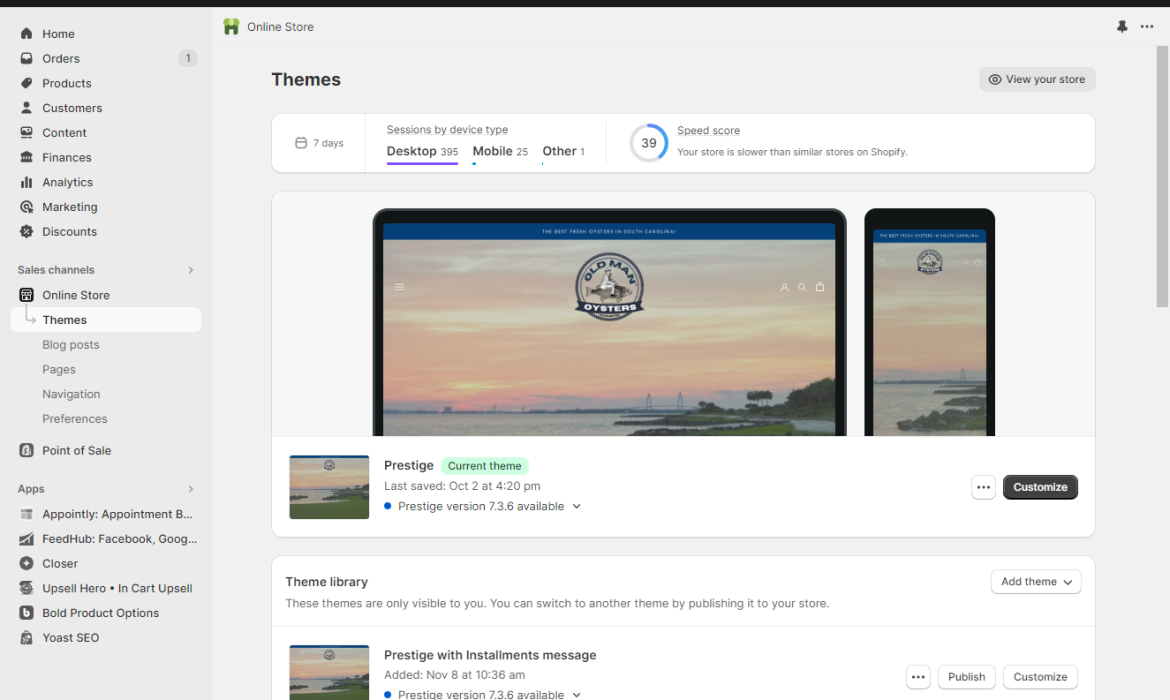
Shopify store dashboard open on the screen
Creating a seamless shopping experience and capturing your customers’ attention relies heavily on a visually appealing store. From selecting the perfect theme to optimizing your store for mobile devices, customizing your store’s appearance can make a world of difference.
So, let’s delve into the specifics of creating a Shopify store that impresses customers and keeps them returning, all while reflecting your brand identity.
Select a Theme
To best showcase your products and align with your brand image, it’s key to select the right theme for your to use Shopify’s same store. Shopify’s theme store offers a fantastic collection of themes that cater to various business types and styles.
The default theme, Dawn, is a great starting point, but feel free to explore other themes available in the Shopify theme store. Factors such as your store’s functionality, product catalog size, and customer demographic can influence your theme choice. By selecting a theme that best represents your brand and offers the desired features, you’ll be one step closer to building a successful Shopify store.
Customize Design Elements
After choosing a theme, proceed to tailor your store’s design elements. A cohesive and visually appealing store can significantly impact customer trust and engagement. Start by customizing your store’s colors, fonts, and layouts to create a consistent look and feel that represents your brand identity.
A stunning banner can grab your customer’s attention and showcase your products. Tools like Canva make it easy to design eye-catching banners with just a few clicks. In addition to your banner, consider setting a Favicon to create a recognizable icon for your store in browser tabs, bookmarks, and other locations.
Optimize for Mobile Devices

A screenshot of the Shopify mobile app displaying the step-by-step process of how to set up shopify store
Given the increasing prevalence of online shopping on smartphones and tablets, optimizing your store’s home page for mobile devices is key to providing a seamless customer experience. Focus on making your navigation bar accessible and fixed for easy browsing on smaller screens.
Additionally, optimizing tap targets on buttons and links will ensure customers can easily navigate and interact with your store on their mobile devices. By providing a seamless shopping experience across all devices, you’ll be better positioned to capture sales and build customer loyalty.
Add and Organize Products

A person adding and organizing products in their Shopify store
To aid customers in effortlessly finding and purchasing items, it’s crucial to add and organize products in your store. From detailed product descriptions to well-organized collections, the layout of your store can significantly impact the shopping experience.
Let’s delve into the specifics of adding and organizing products in your Shopify store.
Add Product Details
To make your want to sell your products stand out and improve searchability, focus on the following strategies to sell your products:
- Craft detailed product descriptions infused with relevant keywords.
- Use high-quality images to showcase your products.
- Add relevant tags to your product listings. By implementing these strategies, you can boost your search engine rankings and increase customer engagement.
Consider offering product variants for a more engaging customer experience. By adding product variants in Shopify, you can provide customers with more options and a better shopping experience. Don’t forget to include additional details in product description, such as shipping information or customer reviews, to help customers make informed decisions.
Create Collections
Creating collections is an effective way to group similar products and improve store navigation. In your Shopify admin, go to Products > Collections, and create a new collection by entering a name and selecting the appropriate conditions. Adding products to collections can be done manually or automated based on conditions such as price or tags. By using collections to organize your products, you’ll make it easier for customers to find what they’re looking for and improve the overall shopping experience.
Organize Products in the Navigation Menu
To help customers easily in Shopify stores find and browse items, organizing products in the navigation menu is crucial. In your Shopify admin, go to Online Store &